The Shopify migration URLs a crawl won't find
Most redirect maps start with a crawl. That's a decent first list, but it misses images, orphaned pages and every address that only exists in an email, an old article or on a printed leaflet.
Jump to a section 9 sections
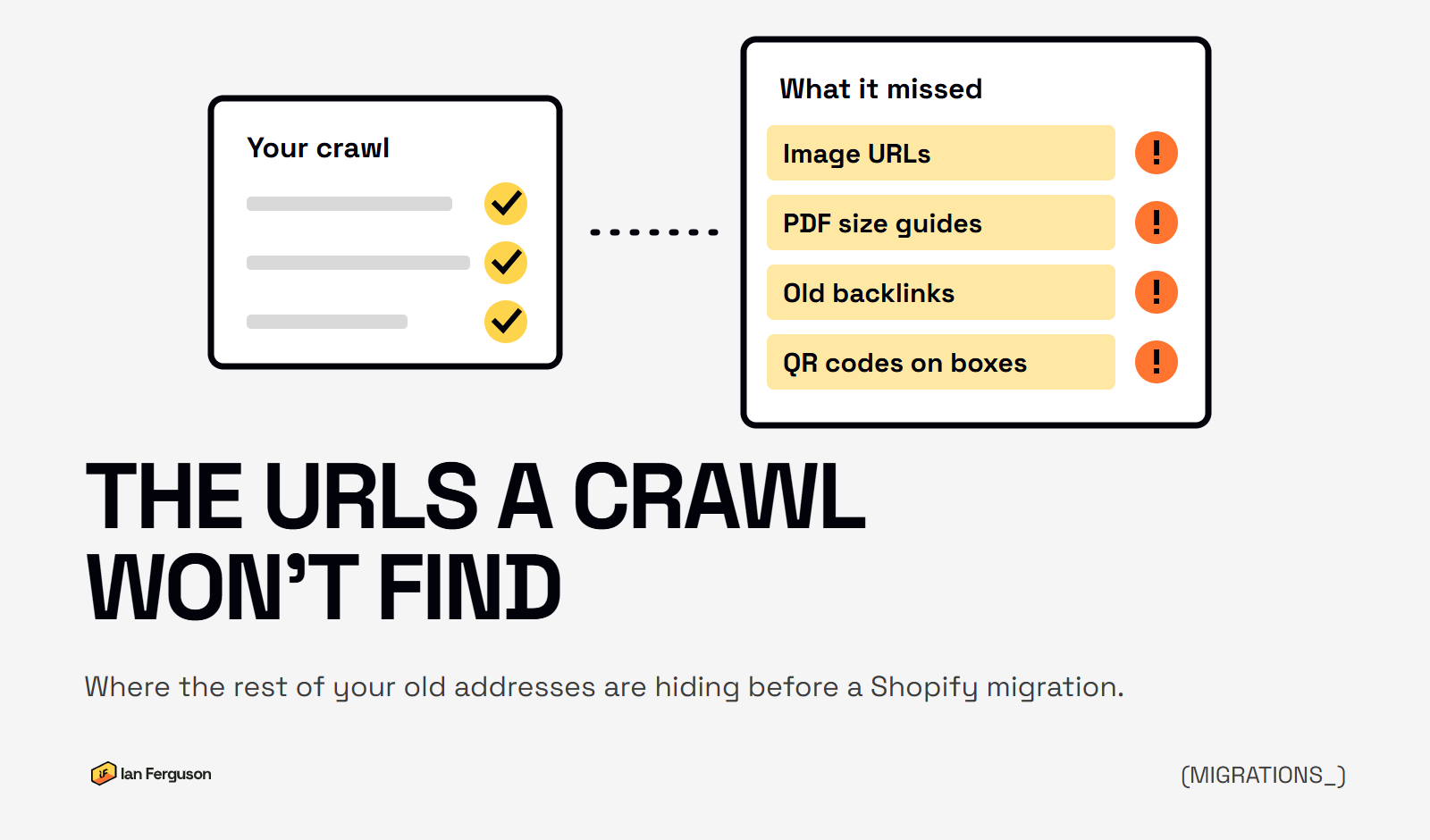
One store I've seen had its pages redirected, and its image traffic still dropped when the new site went live. The agency had redirected the HTML pages and none of the image URLs, and the alt text hadn't come across either. It's an easy one to miss, because the usual way to start a redirect map is to crawl the old site and work through what comes back, and a crawl only shows you part of what Google, your customers and everyone linking to you know about.
TL;DR. A crawl only finds what your site still links to. Before you move to Shopify, add Search Console, your old sitemaps, image and PDF URLs, your backlinks, your analytics landing pages and anything printed or sent by email. Merge them into one list with one row per old URL, decide which ones earn a redirect, then test that list again after launch.
Why doesn't a crawl find every URL?
Because a crawler behaves like a visitor who only ever clicks links. It starts on your homepage and follows whatever it can reach, so anything your site no longer links to doesn't exist as far as it's concerned.
That's where the valuable strays tend to live: a collection that fell out of the menu two redesigns ago and still ranks, an old buying guide with a handful of good links, a landing page from a campaign nobody remembers.
Google's own site move guide doesn't suggest a crawl when it tells you how to find your important URLs. It points you at your sitemaps, your server logs or analytics, and the links report in Search Console. You still want the crawl, as it's the quickest way to see the site as it stands. It's just the first list rather than the only one.
Which pages does Search Console know about that your crawl doesn't?
Quite a few, usually. Search Console shows you the pages that have been turning up in Google, whether or not your site still links to it. Any page with impressions that isn't in your crawl needs a decision before launch.
Two things to watch for when you pull it:
- The export stops at 1,000 rows. That's the most the Search Console screen will give you, and a store with a decent catalogue goes past it quickly. Ask whoever's running the migration to pull it through the API, or connect Search Console to their crawler.
- Take it long before launch. Search Console holds sixteen months of data, so the sooner you save a copy, the more of last year's seasonal pages you'll catch.
Add your sitemaps whilst you're there, including any old ones still submitted in Search Console. They're a record of what your site was telling Google to index, which isn't always what it links to today.
Do image URLs need redirecting in a migration?
If they earn traffic, yes. Google's guide is plain about it: "Make sure that you include URLs of embedded content in your site move plans: videos, images, JavaScript, and CSS files." Ecommerce sites are often more exposed here than they realise, because product photos can rank in Google Images for years without anyone looking at the traffic.
The awkward part is finding them. Filter Search Console's Performance report to the Image search type and you'll see the pages, not the pictures, because the URL it reports is the page hosting the image. So take that list of pages and have them crawled for the image addresses sitting on each one.
Then a few practical bits:
- Keep your filenames if you can. It makes matching the old address to the new one far easier. Where an import renames them, it becomes a matching job rather than something you can generate.
- Bring the alt text across. It's easy to lose, and nothing looks broken when it goes.
- Check where the images live. If they sit on a separate host, your Shopify redirects may never see the request. I've covered that in the Craft migration post, and it applies to any platform set up that way.
- Size it honestly. Image traffic from generic searches tends to be less likely to buy. It might not be worth a week of anyone's time, so look before you commit to matching every picture on the site.
The same goes for PDFs: size guides, manuals, price lists and old catalogues. They often sit in a folder of their own, get linked from all sorts of places, and vanish when the old platform does.
How do you find the old URLs other sites link to?
Search Console's Links report is the free place to start, but it's a sample and its tables stop at 1,000 rows, so I'd add an export from a tool like SE Ranking or Ahrefs as well. Sort it by the pages with the most linking sites, and don't filter out the ones already returning a 404.
Those dead ones are the opportunity. On one store, a look at the pages customers were landing on and getting a 404 turned up traffic from IndyBest articles linking to old stock. A redirect to a like-for-like product gave those visitors somewhere to land. A migration is the right moment to sort these, and it's a lot easier whilst you still have access to the old platform.
You'll also see plenty of URLs with parameters on the end. Shopify warns that URLs with query strings might not work as expected as redirects, so point the rule at the plain address and test it with the parameters on. When I tested it on a recent migration, the plain rule caught them.
What about the URLs that only your team knows about?
This is the list no tool will give you, and it's the one most likely to embarrass you. A customer doesn't care that an address isn't in your crawl if it's the one printed on their box.
Your analytics will catch some of it. Look at the Landing page report in Google Analytics over the longest period you've got, because email and ad traffic land on pages a crawler never sees. Then ask around for the rest:
- Automated email flows and templates, which can run for years untouched
- Google Ads, Meta and any other paid campaigns
- Affiliate links and supplier or stockist sites
- QR codes and short links on packaging, manuals, catalogues and leaflets
- Social bios and your Google Business Profile
Each old platform also keeps a record of its own, and it's worth asking your developer for it: Magento's URL rewrite table, the redirect plugin on WooCommerce or Retour on Craft.
How do you build a Shopify redirect list?
With a spreadsheet nobody's going to love, but it's the most valuable file on the project. One row per old URL, with a column for where it was found, its clicks, its linking sites and the new address.
- Merge and clean. Put the lists together, then match them up so the same page written two ways (a capital letter, a trailing slash, a tracking code) doesn't count as two.
- Sort by what it's worth. Clicks and linking sites go to the top. Those rows get checked by a person, not just matched by a formula.
- Decide what doesn't get a redirect. A 404 is a perfectly healthy answer for an old test page with no traffic and no links. What you don't want is everything pointed at the homepage, because Google says that "might be treated as a soft 404 error". If there's no sensible new home, let it go.
- Keep the list. It's your before picture, and you'll need it again the week you launch.
Don't worry about the size. Shopify allows 100,000 redirects on a standard plan, which is plenty for most stores.
How do you check nothing was missed after launch?
Run that same list back through a crawler, this time as a list of URLs rather than following links. Every old address should land on a working page in one hop. Then crawl the new site as normal, to catch internal links that still go through a redirect or end in a 404.
Your customers will find the rest for you. In all my years doing this, 404s have never fully gone away after a launch: old bookmarks, email links, you name it. So keep an eye on the ones people are hitting.
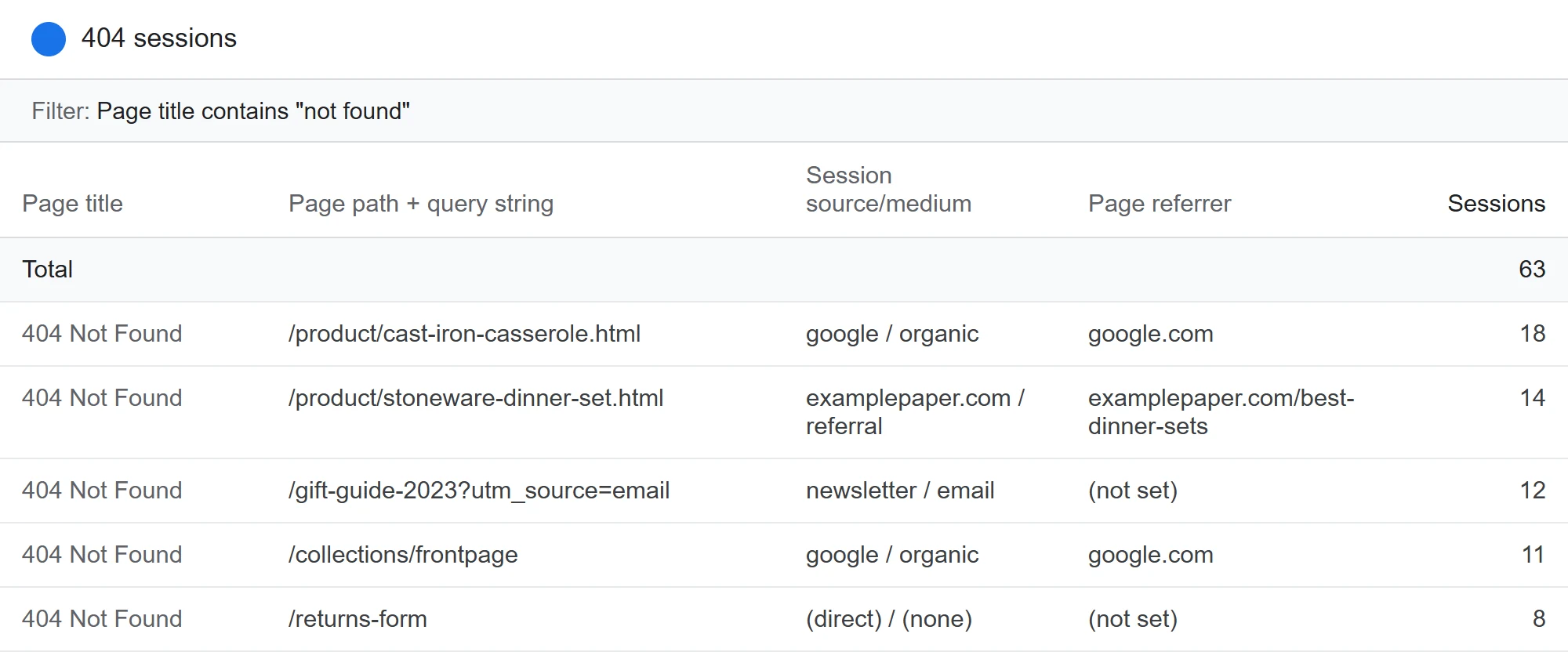
A simple 404 report in Google Analytics
- Go to Explore and create a new exploration.
- Add four dimensions: Page path + query string, Page title, Session source/medium, and Page referrer.
- Add the metric Sessions.
- Drag all four dimensions into Rows and Sessions into Values.
- Add a filter for Page title contains "not found". If your 404 page says something different, type a nonsense address on your site and use what's in the browser tab.
Page referrer is the useful one, because when it's filled in, it tells you where the old link lives. Then it's a case of adding a redirect for anything that's worth one. I've found /collections/frontpage ranking for branded searches this way on a Shopify store, which is an address that should never be in front of a customer.
Your URL list checklist
- A full crawl of the old site
- Search Console pages, pulled past the 1,000 row limit
- Current and old sitemaps
- Image URLs from the pages earning image traffic
- PDFs and other files
- Backlinks, including ones pointing at 404s
- Landing pages from Google Analytics
- Email flows, ads and affiliate links
- QR codes and anything else in print
- The old platform's own redirect or rewrite records
- Merged into one list, with one row per old URL
- The same list tested again after launch
Questions I get asked
Do I still need a crawl? Yes. It's the quickest way to see the site as it stands, and it shows you the internal links and titles too. It just can't be the whole list.
Should every old URL get a redirect? No. Anything with traffic, links or a customer likely to use it should get one, pointing at the closest match. Junk can go.
How long should I keep the redirects? Google says "as long as possible, generally at least 1 year", and for customers it suggests considering keeping them indefinitely. On Shopify they don't get in the way, so I'd leave them.
Do I need Google's Change of Address tool? Only if your domain is changing. Google says you "only need this tool when moving from one domain or subdomain to another". If you're moving to Shopify and keeping your domain, you can skip it.
Who should build the list? Whoever owns SEO on the project. If nobody does, that's a bigger problem than the list.
I've worked on close to a hundred Shopify migrations, and building this list is one of the first things I do. If you're planning a move and want someone on it, here's how I work on Shopify migrations. If you've already moved and the numbers haven't come back, start with post-migration recovery.
If you run an ecommerce store and want more of this once a week, that's what Ecommerce Prioritised is for.

Written by
UK-based ecommerce SEO consultant, helping online shops with the technical SEO and content that drive organic growth.
Get the next one in your inbox
Ecommerce Prioritised is a free weekly read on growing an ecommerce store: what to prioritise, what to ignore, and the changes worth acting on.
Filed in Platform migrations
Share LinkedIn